Dwindle tiling
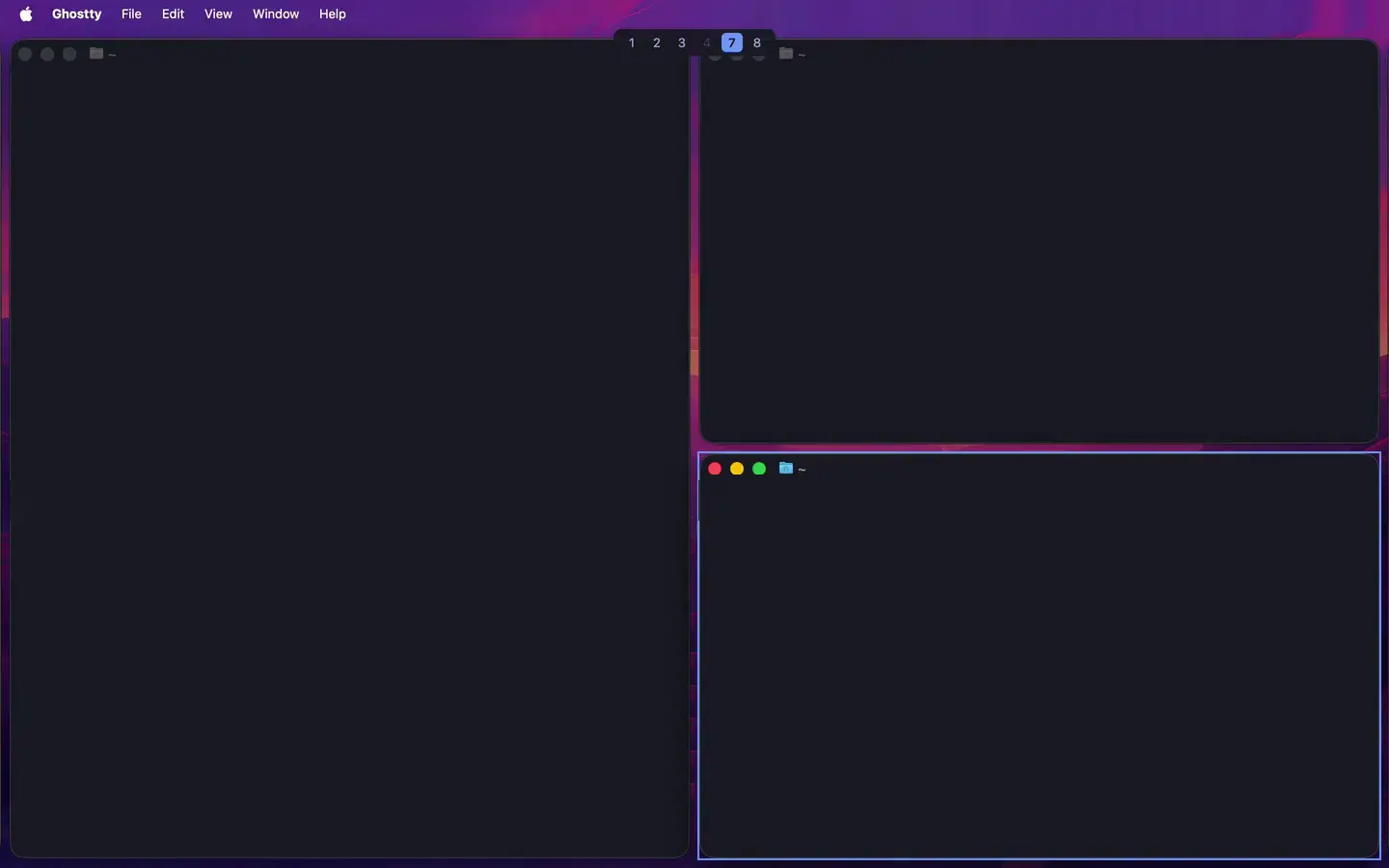
Each new window splits the space of the one you are in, so tiled windows sit side by side and never overlap.
47 features on a Mac: Omarchy's, and a few of Omac's own. Most have a default key.
Keys are shown as you press them. Left ⌘ is the Omac key, and Right ⌘ stays a normal ⌘. ⌥ is Option. Every key can be changed in omac.toml.
Left ⌘ Return Terminal · Left ⌘ Shift Return Browser · Left ⌘ Shift Ctrl A Coding agent · Left ⌘ Shift F Finder

Left ⌘ Shift Ctrl Space Theme menu · Left ⌘ Ctrl ⌥ Space Next wallpaper
Left Ctrl fn Hold to talk · ⌥ Esc Read aloud, or stop
Left ⌘ Ctrl T Copy text from the screen
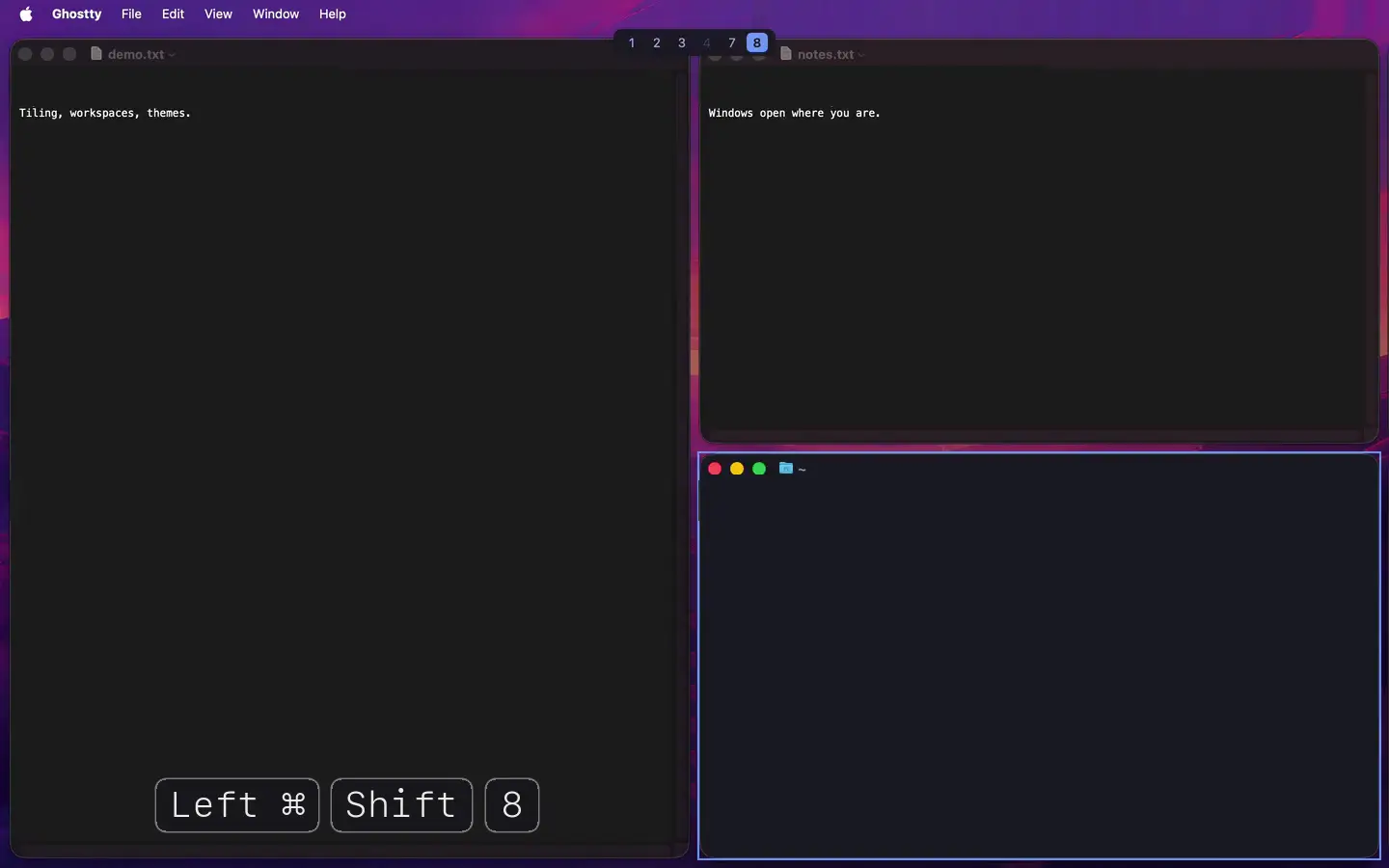
Left ⌘ 1 … 0 Go to a workspace · Left ⌘ Shift 1 … 0 Take the window there
Left ⌘ Ctrl V Clipboard history
Each new window splits the space of the one you are in, so tiled windows sit side by side and never overlap.
Ten workspaces across your displays. Each belongs to a display, and switching to one goes to the display that has it.
Left ⌘ 1 … 0
Move the focus to the window on the left, right, above or below, and on to the next display at the edge.
Left ⌘ ← ↑ → ↓
Swap a window with its neighbour, or move it to the next display when it has no neighbour that way.
Left ⌘ Shift ← ↑ → ↓
Send the window to another workspace, and follow it there or stay where you are.
Left ⌘ Shift 1 … 0orLeft ⌘ Shift ⌥ 1 … 0
A new window opens on the workspace you are looking at; one opened with a launch key lands where you pressed it.
Plug in, unplug or rearrange displays and Omac follows: each display keeps its workspaces and is tiled again.
Make a window wider, narrower, taller or shorter. For the width, add ⌥ for a small step or Ctrl for a big one.
Left ⌘ − / =orLeft ⌘ Shift − / =orLeft ⌘ ⌥ − / =orLeft ⌘ Ctrl − / =
Turn a split from side by side to stacked, and back.
Left ⌘ J
Let a window float freely above the tiles, or put it back in the tiling.
Left ⌘ Shift Space
macOS full screen in a Space of its own; the same key brings the window back to its tile.
Left ⌘ Ctrl F
Move a whole workspace to the display on the left, right, above or below.
Left ⌘ Shift ⌥ ← ↑ → ↓
Cycle through the windows of a workspace, or move the focus to the next display.
⌥ TaborCtrl ⌥ Tab
Switch a workspace to a scrolling row of columns, where a new window never squeezes the others.
Left ⌘ Shift LorLeft ⌘ Shift R
Rules per app in omac.toml: always float it, open it on a given workspace, give it a size, or leave it alone.
The window fills the screen but keeps the outer gaps; the same key puts it back.
Left ⌘ ⌥ F
Pin a floating window: it stays with you across workspaces, and the tiles make room when it sits against an edge.
Left ⌘ Shift Ctrl O
Pop a window out: it floats, centred at 1300×900, and stays with you across workspaces. Press again to tile it.
Left ⌘ Ctrl O
Optional: the focus border follows the window under the pointer, without switching apps.
Optional, off by default: point at a window and type there, no click. The menu has a quick off switch.
In the scrolling layout, stack a window into the column beside it, move through the stack, or pop it out.
Left ⌘ Shift Ctrl ← / →orLeft ⌘ ⌥ G
One key per app, each opening a new window that tiles: a terminal, a browser, an editor, Finder. Choose the apps in omac.toml.
Search your key bindings by name and run one.
Left ⌘ ⌥ Space
Shows every key Omac binds, your own changes included, as soon as you save omac.toml.
Left ⌘ K
A small bar on each display shows its workspaces; click a number to switch.
A searchable history of what you copy, text and images; Return pastes. Copies a password manager marks as secret are never kept.
Left ⌘ Ctrl V
Set a countdown from the command line. A notification comes when it ends, even if Omac has quit.
omac reminder
Set a reminder with a key and a few words, see the ones running, or clear them.
Left ⌘ Ctrl RorLeft ⌘ Ctrl ⌥ RorLeft ⌘ Shift Ctrl R
Opens your AI coding agent (Claude Code by default) in a terminal; choose another from the menu or with omac agent use.
Left ⌘ Shift Ctrl A
Teaches your coding agent how to change Omac's settings and use the omac command safely.
Links Omac's skill into the coding agents it finds, such as Claude Code and Codex. Uninstall removes only its links.
omac skill install
Hands the newest macOS crash report to your coding agent to explain in plain words.
omac agent crash
Reads the selected text aloud in your macOS voice; press it again to stop. Off until you turn it on.
⌥ Esc
Hold Left Ctrl and fn to type what you say. macOS 26, supported Apple silicon hardware; unavailable on Intel. Off until enabled.
Left Ctrl fnorLeft ⌘ Ctrl X
Drag over any part of the screen to copy its text, read on your Mac by macOS's own text recognition. Asks once for Screen Recording.
Left ⌘ Ctrl T
Omarchy's 22 themes with all 92 of their wallpapers: one key sets borders, light or dark mode and the wallpaper; apps follow if you choose.
Left ⌘ Shift Ctrl Space
Cycles the current theme's wallpapers, plus any you add, on every display.
Left ⌘ Ctrl ⌥ Space
Keeps the screen from sleeping until you press the key again or quit Omac.
Left ⌘ Ctrl I
The menu-bar icon shows when tiling is paused, when keep awake, Night Shift, mic mute or reading aloud is on, and while you dictate.
Click any pixel on the screen to copy its colour as hex, like #1E1E2E.
Left ⌘ Ctrl P
Turn Night Shift on or off with one key.
Left ⌘ Ctrl N
Mute the microphone for every app at once, with one key. Quitting Omac unmutes a microphone it muted.
Left ⌘ Ctrl M
Omarchy's art, your words or a picture, animated until a key or the mouse; the menu sets effects, colour, size, speed, displays.
Left ⌘ Ctrl ⌥ S
Every setting in one commented file, ~/.config/omac/omac.toml. Save it and the change applies at once.
Keys are [[bind]] lines in omac.toml: change one, add your own, or unbind a default.
The omac command controls Omac from a terminal or a script: status, keys, pause, themes and more.
omac …
One key pauses the tiling and leaves windows where they are; press it again to resume. Quitting Omac puts hidden windows back.
Left ⌘ Ctrl ⌥ Esc
Omarchy is a whole Linux system. These parts of it are already on your Mac, or are outside what a window manager does.